

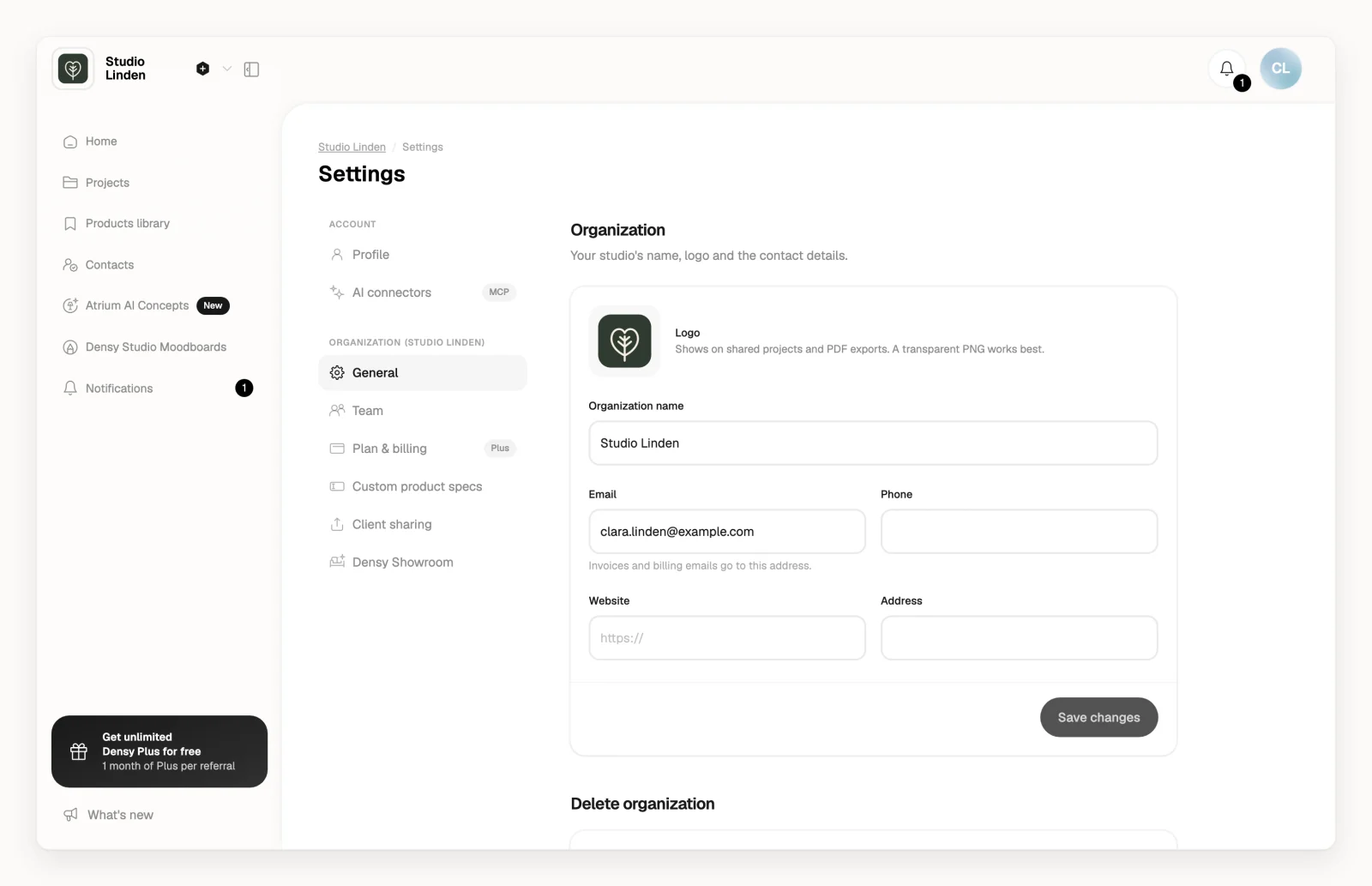
Your logo goes in Organization settings. On Densy Plus, your clients see it on their project link, in your PDFs and in the email that invites them.
Upload your logo
- Click your profile picture or initials in the top right and choose Organization settings.
- Click the square next to Logo and pick an image, or drag the image onto it.
- Click Save changes. The logo isn't saved until you do.
A square PNG with a transparent background works best. SVG doesn't work.
To replace or remove it, hover over the logo, click , confirm, upload a new one if you want and click Save changes.
Where your logo shows
Your team sees it at the top of the sidebar on any plan. Clients see it only on Densy Plus:
| Where | Free | Densy Plus |
|---|---|---|
| Your client's project link, top left | Your organization's initials | Your logo |
| PDF exports of rooms and projects | No logo | Your logo, unless you untick Show organization logo in the export settings |
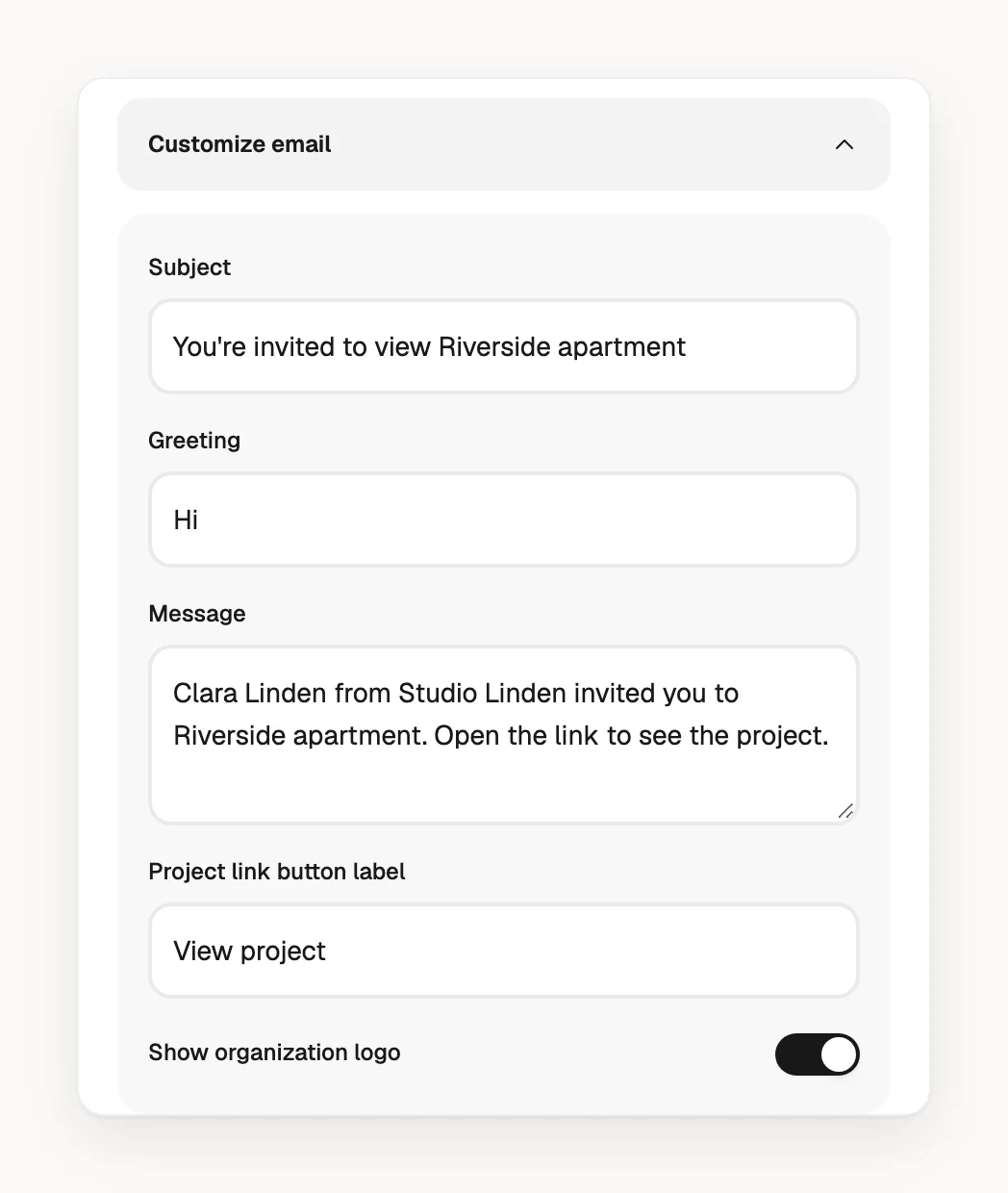
| Email inviting a client to a project | No logo | Your logo, unless you switch off Show organization logo under Customize email |
After you change it
New PDFs, invite emails and client links use the new logo straight away. PDFs already downloaded and emails already sent keep the old one.
If your organization goes back from Plus to Free, the logo stays in your settings but disappears from client links, PDFs and invite emails until you resubscribe.
Only admins of your organization can change the logo. If you're not an admin, ask one in your team.