

Everyone you invite joins your organization and works under its plan. Their role decides what they can open.
Invite someone
- Click your profile picture or initials in the top right and choose Team.
- Click Invite member.
- Enter their email address and pick a Role.
- Click Send invite.
They get an email from Densy with a link to join your organization. The link works for 7 days; until they join, they're listed under Pending invitations. If they don't have a Densy account yet, they create one first. If they already have their own organization, they keep it and join yours as an extra one.
The link works for whoever opens it, so send it only to the person you're inviting. Didn't get the email? See What if a team invitation email doesn't arrive?
Only admins can invite people. Every active person and every pending invitation takes a seat: 3 on Free, 6 on Densy Plus. See How many team members can I have in Densy?
Someone who's already on your team can't be invited again. To bring back a deactivated person, click next to them and choose Restore access. It needs a free seat.
Which role to pick
- Admin: everything, including the organization settings, the team, the plan and billing.
- Member: every project and everything in the workspace, but no organization settings and no team management.
- Project member: only the projects they're assigned to. They work inside them (add and edit products, comment, move tasks), but can't create, set up or share projects, and don't see the Contacts, Atrium and Studio pages.
You can change a role later in the Role list next to the person on Team.
Give a project member their projects
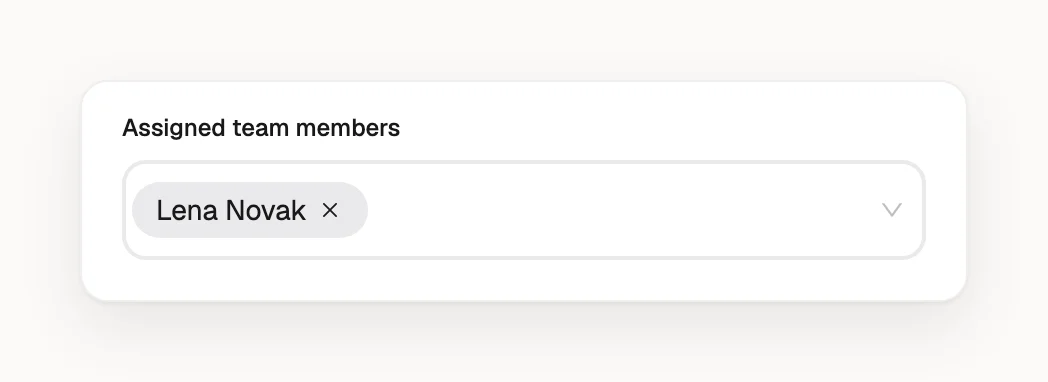
A project member sees no projects until you assign them. Open the project, click Project settings, add them under Assigned team members and click Save project.
To change roles or remove someone, see How do I control who can see a project?