

People in your team see projects by their role. Clients see only what you share with them.
Who in your team sees which projects
| Role | Projects they see |
|---|---|
| Admin | Every project, plus the organization settings, the team and billing. |
| Member | Every project. Creates, shares and sets up projects, but can't manage the organization or the team. |
| Project member | Only projects they're added to. Works inside them, but can't create projects, change Project settings or share projects. |
All 3 roles exist on every plan; see How many team members can I have in Densy?
Give someone access to a project
- Open the project and click Project settings in the top right.
- In Assigned team members, add the person.
- Click Save project.
Take them off the list and it's gone for them.
People with the Admin or Member role see every project anyway; adding them gets them its notifications.
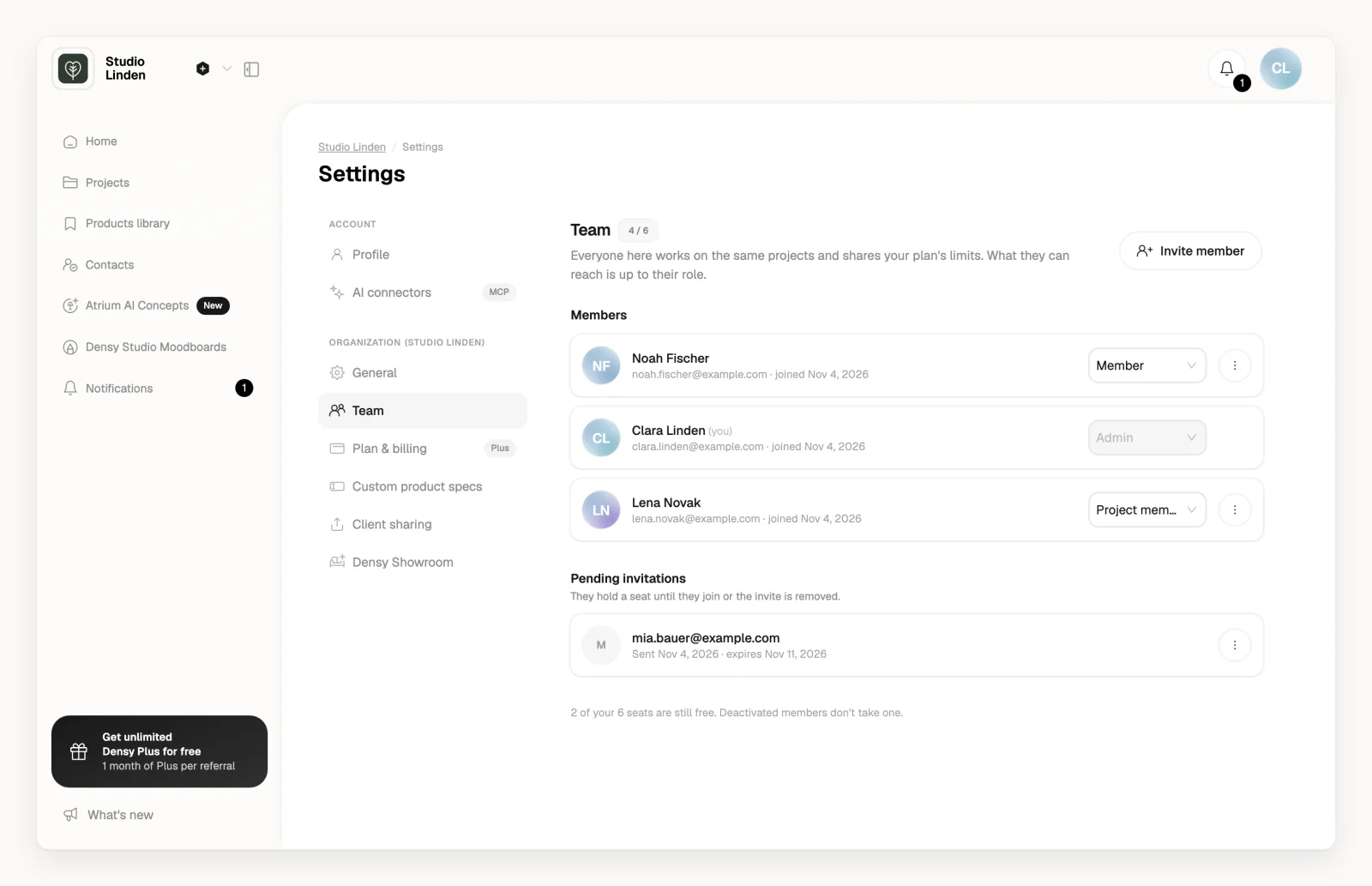
Change someone's role or remove them
Only admins can do this.
- Click your profile picture or initials in the top right and choose Team.
- Pick a new role in the dropdown next to the person.
To remove someone, click next to them and choose Deactivate. They lose access to every project, get an email, and their seat frees up. Restore access in the same menu brings them back, if you have a free seat.
What clients can see
A client sees a project only after you invite them or send them its share link from Share project. See How do I invite a client to a project? A room's share link from Visibility & sharing gives access to the whole project too. What each client sees inside is up to you: see How do I control what a client can see and do?