

Products live in rooms, grouped into sections. You can add them from a shop link, from your library, by hand, with the clipper while you browse, or a whole room at once from a spreadsheet.
Add a product from a shop link
- Under the section's last row, click Add new section item and choose Product from URL. An empty section also has an Add product from URL button, with the other choices under Other options.
- Paste the link to the product's own page (not a category or search page).
- Leave Smart fill on for more: AI reads the whole page, fills in what's missing and adds up to 2 more photos. Or switch it off.
- Click Fetch details. Reading the page can take up to a few minutes.
- Check the preview and click Add product.
Densy fills in what the page shows, such as name, price, photo, dimensions, material and supplier. Change anything right in the row afterwards.
- The price is copied as it is. If the shop shows another currency than your project, Densy doesn't convert it.
- Supplier terms: if the shop's website is saved on a supplier in Contacts, the row is linked to that supplier and gets its default trade discount (and markup, with Markup mode on).
- If the page can't be read, you see Insufficient product details. Check that it's a product page and click Try again, or add the product by hand.
On Free, the workspace gets 24 Smart product fills a month, reset on the 1st; on Plus there's no limit. When they're used up, the switch starts off and links still work without it.
Add a product from your library
- Click Add new section item and choose Product from library.
- Pick a collection at the top if you want, and click Add product on the product.
- If the product has alternatives, Choose alternatives to add opens with every option ticked. Untick the ones you don't want and click Add to room.
The row stays linked to the library product and shows when there's an update to review. How to fill the library: How do I use the products library?
Add a product by hand
Click Add new section item and choose Product. Fill it in right in the row, or click (Open detailed editor) for every field.
Clip products while you browse
The Densy Product Clipper is a Chrome extension that saves the product page you're on into a room or your products library. See How do I install the Densy Product Clipper?
Import a whole room from a spreadsheet
- Open the project and click Import from spreadsheet next to New room (Create first room in a project without rooms).
- Drop an .xlsx, .xls or .xlsm file into the dialog, or click it to browse.
- Click Import.
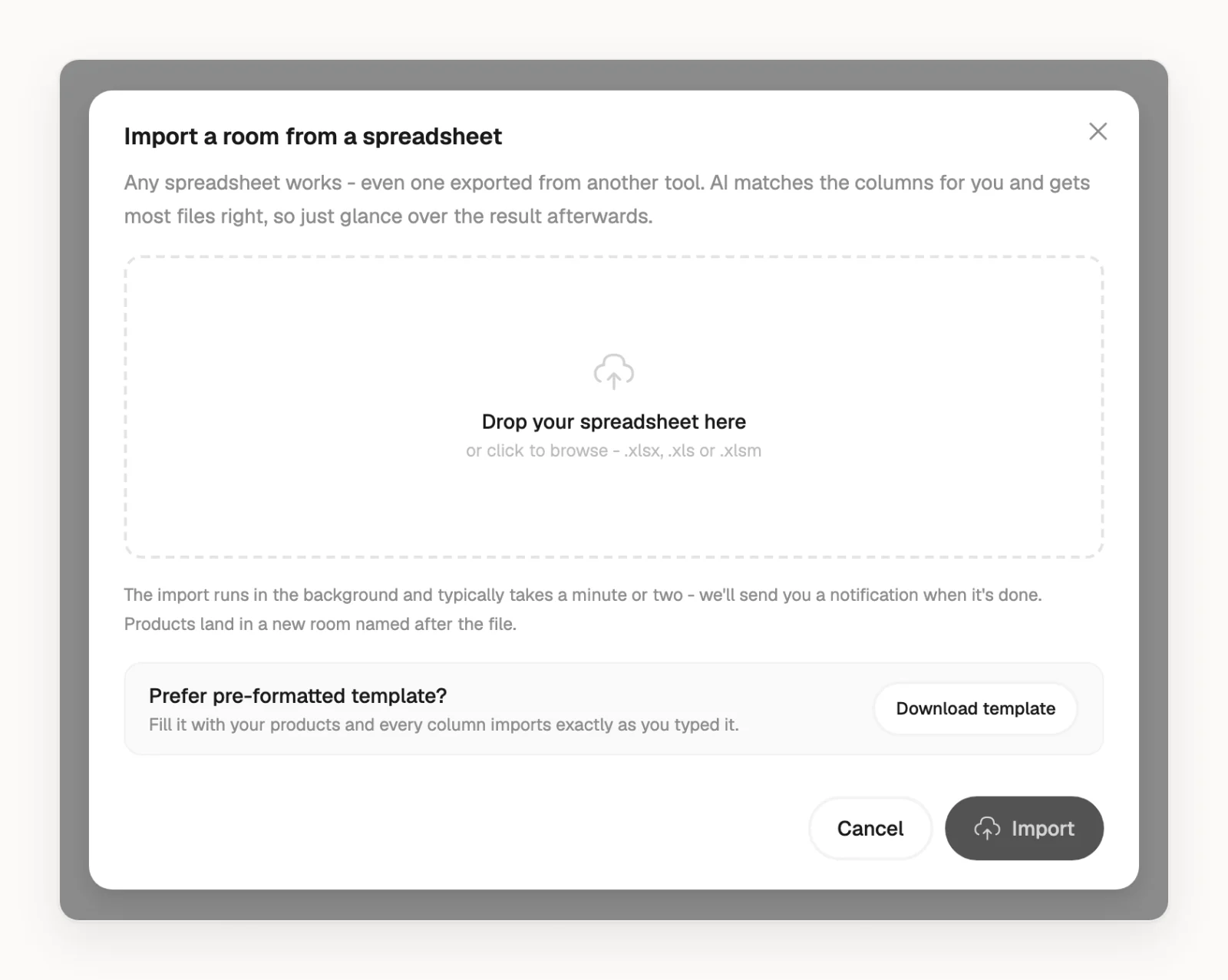
The products land in a new room named after the file, usually within a minute or two, and you get a notification when it's done. Pictures in a product's row come along in .xlsx and .xlsm files.
Any layout works: AI matches the columns and reads up to 250 rows of each sheet, so check the result. For big files, use Download template: Densy's own layout imports every row exactly as you typed it.
Other ways
- From another project: in a product's menu, Copy to... copies it to a section in another room or project.
- From Densy Showroom (Czech Republic only): open a product there, click Add to project, pick the project, room and section, and click Add.
- From an AI app: see How do I connect Claude, ChatGPT or another AI app to Densy?
To offer the client a choice between several products for one spot, add them as alternatives on one row: How do I add alternatives to a product?