

AI connectors let Claude, ChatGPT and other AI apps that support MCP work in your Densy projects. You ask in your own words, and the AI reads your schedules or makes the changes for you.
Connect an AI app
- Click your profile picture or initials in the top right and choose AI connectors.
- Under How to connect, pick your app and follow its steps. Claude, Cursor and VS Code have a button that adds Densy for you: Add to Claude, Add to Cursor or Add to VS Code. Other apps take the address
https://densy.io/mcpor a command to run in your terminal. - Your AI app opens a Densy page in your browser.
- Click Allow. If the AI should only look, switch off Make changes first.
- Go back to your AI app and ask.
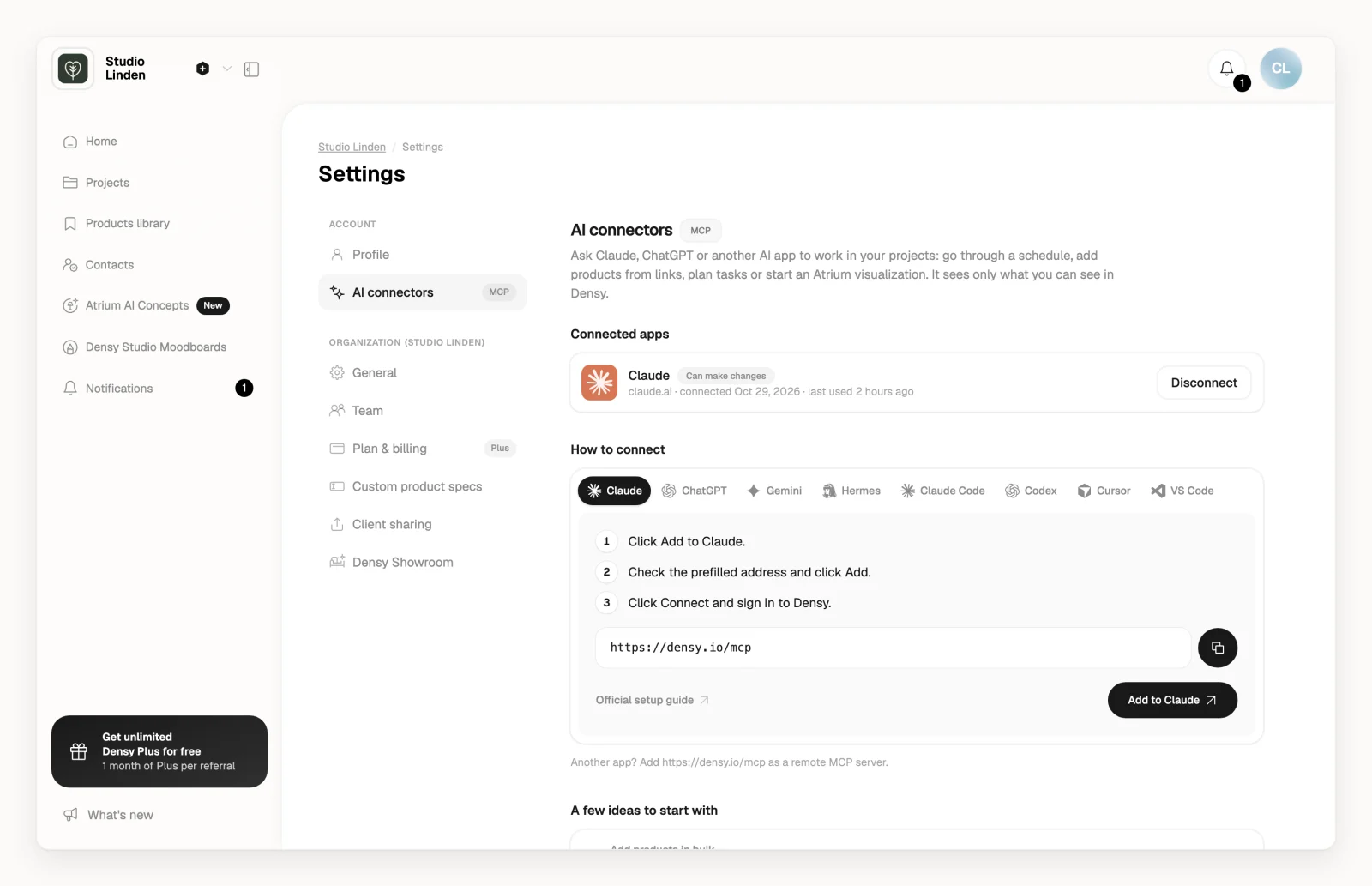
Using an app that isn't listed? Add https://densy.io/mcp as a remote MCP server. There's no API key: choose OAuth if it asks.
It works on Free and on Densy Plus, though some AI apps allow custom connectors only on their own paid plans.
A connection request is valid for 15 minutes. If Densy says This connection request expired, go back to your AI app and connect again. Only click Allow if you started connecting from that app a moment ago.
What you can ask it to do
- Go through your projects, schedules, budgets, planner, chat, files, contacts, library, moodboards and visualizations.
- Add products from links, change prices, statuses and notes on many rows at once, set up rooms and sections, and add alternatives.
- Turn notes into planner tasks, write comments and chat messages, and sum up what your clients approved.
- Make moodboards and Atrium visualizations, which use your organization's Atrium credits as in the app.
A few ideas to start with on the AI connectors page has example requests you can copy.
What it can't do without you
- It sees only what you can see, with your account. If you're in more than one organization, tell it which one you mean.
- Before it emails a client, shares a project link, changes anyone's access, deletes something, or posts or edits a message your client sees, it shows you a preview and waits for your yes.
- Everything else happens straight away, under your name, and clients see its changes wherever they'd see your work.
- Deleting or duplicating a project, copying a room and inviting people to your organization stay in the Densy app.
See or disconnect your connected apps
Connected apps on the AI connectors page lists the apps you've connected, whether each Can make changes or is Read only, and when it was last used. Disconnect stops an app at once. To switch an app between read-only and making changes, disconnect it and connect it again. Each person connects their own apps, and nobody else in your team sees them.
Changing your Densy password disconnects all your AI apps, and an unused connection ends on its own after a while. Connect again to keep going.
Your AI app doesn't know about something new in Densy
AI apps keep their own list of what Densy can do, and some don't reload it for hours. Try these in order:
- Start a new conversation.
- In ChatGPT, refresh the Densy connector in its settings. In Claude Code, Cursor or VS Code, reconnect the Densy server (in Claude Code, type
/mcp). - Remove the Densy connector from your AI app, add it again with
https://densy.io/mcp?v=2and sign in. Then disconnect the old entry under Connected apps if it's still there.