

Alternatives are other options for one spot in the room: the same sofa in another fabric, a smaller size, a cheaper pick. They sit on one row, under the main product, and your client chooses between them.
Add an alternative
- Hover over the product and click on the right of the row.
- Under Alternative options, point to Add alternative option and choose:
- New alternative: an empty one you fill in yourself.
- Alternative from URL: paste a shop link and Densy fills it in.
- Alternative from library: pick a product from your products library.
Later, the Add alternative button at the end of the strip under the row does the same.
Adding an alternative sets the client's decision on the whole row back to awaiting approval, so they can decide again with the new option in view.
Switch between the main product and its alternatives
The strip under the row starts with the main product, marked with a star, followed by the alternatives. Click a thumbnail to show and edit that option in the row. Drag the alternatives to reorder them.
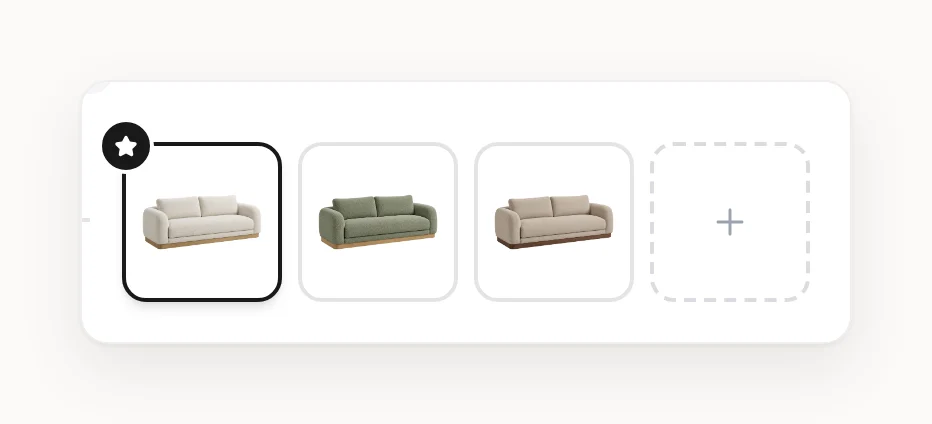
Hover over an alternative's thumbnail and click for:
- Promote to main product: it swaps places with the main product. The client's decisions on the row go back to awaiting approval.
- Extract as separate product: moves it out to a row of its own.
- Hide from clients and Show to clients.
- Delete alternative.
Turn existing rows into alternatives
If the options are already separate rows in the same room:
- Hover over each product and tick the checkbox on the left of the row. The first one you tick becomes the main product.
- In the bar at the bottom of the screen, click Group as alternatives.
Select 2 or more products and nothing else; this works on a computer, not a phone. Comments on the others are copied to the main product; if you switch that off, they're deleted. Grouping sets the client's decisions back to awaiting approval.

Compare the options side by side
Click on the row and choose Compare alternatives to see the prices and details of every option next to each other. Your client can compare them too.
What the client sees, and the budget
- Budget: only the main product counts towards the budget.
- Choosing: when the client approves an alternative, it becomes the main product and the other options are marked rejected. See How do client approvals work?
- Exports: PDF and XLSX exports include them when Show alternative options is on.