

Every client you invite has their own permissions. One client can approve products while another only looks, with prices hidden.
Change one client's permissions
- Open the project and click Share project in the top right.
- Under Access management, click next to the client.
- Choose Permission settings.
- Switch off what the client shouldn't see or do, then click Save permissions.
The project's share link works the same way: under Share project with link, click next to the link. Everyone who opens that link gets the same permissions.
What you can switch on and off
- Comments: read and write comments on products and services.
- Approve & reject: approve or reject products and services. When it's off, the client doesn't see approval statuses either.
- Product prices: product and service prices, and the room and project budgets.
- Price summaries: totals per section, room and project. Off when Product prices is off.
- Default view: rooms open as a list or as a grid (photos first).
- Let the client switch: the list and grid toggle in rooms.
On Densy Plus you can also switch these (on Free, new clients get Densy's defaults for them: all on except Project planner, every room open):
- Product links: the link to the product in the shop.
- Product details: the details you leave ticked, such as Supplier, Dimensions or Lead time.
- Studio boards and Project files: the boards and files that are visible to clients.
- Download files: downloads, not just previews of the files.
- Project discussion: the project chat, where the client can write to you.
- Project planner: tasks and phases, read-only, without task comments.
- Room access: only the rooms you pick. Rooms you add later aren't included until you pick them.
Whether clients see your custom specs is set once for all of them, in Custom product specs.
Set what new clients start with
A new link or invite starts with everything on except Project planner, and rooms open as a list. To change that (on Free, only the Free settings):
- Click your profile picture or initials in the top right and choose Organization settings.
- Open Client sharing.
- Set the defaults and click Save defaults.
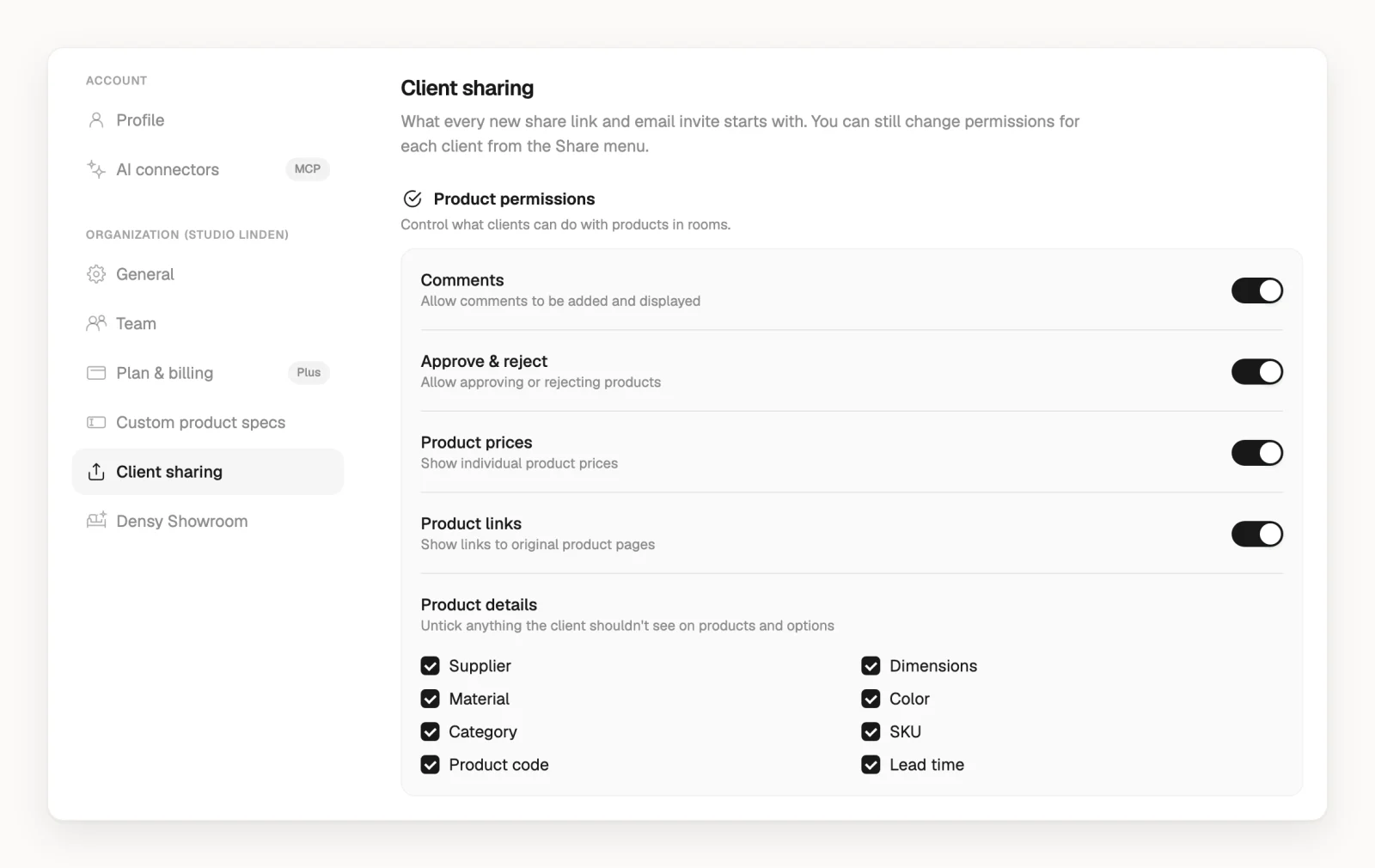
Links you've already shared keep their own settings. Only admins of your organization see Client sharing.
Hide something from every client
- A product: hover over it, click on the right and choose Hide from clients.
- A room: open it, click in the top right, choose Visibility & sharing and switch off Visible to clients.
- Options, files, folders, Studio boards and room images have the same Hide from clients in their menu.
If your organization goes back to Free
Links you shared on Plus keep their permissions. You can only switch a Plus setting back to its Free default, or lift a room limit with Open all rooms.
PDF and spreadsheet exports have their own settings for prices and details. See How do I export a room or project to PDF or a spreadsheet?