

The products library keeps the products you use again and again, with their photos, specs, prices, files and alternatives. Save a product once, then add it to any room in any project. It's under Products library in the sidebar, shared by your whole workspace.
Save a product from a room
- Hover over the product, click on the right of the row and choose Save to products library.
- Click Select next to the collections it belongs in, or leave them all unselected. No collection yet? Click Create new collection.
- Untick any Alternatives you don't want to keep.
- Click Save to library.
The library gets its own copy of the photos, files, specs and prices, and the row stays linked to it (see below).
To save several products at once, tick their rows' checkboxes, click More and choose Save to products library.
Add products straight to the library
Open Products library and click Add new product:
- Product: fill in the details yourself.
- Product from URL: paste the product's link and click Fetch details.
- Products from spreadsheet: import a whole list at once.
If you have a collection open, new products go into it. The clipper saves into the library too: see How do I install the Densy Product Clipper?
Sort products into collections
Collections are your own shelves, such as Bathroom fittings or one per supplier. A product can be in several.
- On the Products library page, click New collection.
- Name it and click Add new collection.
Products without a collection are under Unorganized products: hover over one, click and choose Add to collections, or use Organize all to collections. To move a filed product, open it and change Collections. Deleting a collection doesn't delete its products.
Edit a library product
Click a product to open Edit library product, change what you need and click Save library product. The Internal note is never shown to clients, and Attachments holds spec sheets or quotes.
- Library prices have no currency: a project shows the same number in its own currency.
- Update details from URL reads the shop's page again and shows what changed before you save.
To delete one, hover over it, click and choose Delete. Rows already in projects keep everything but stop being linked. To give a library product alternatives, open it and click Add alternative option at the top.
Add a library product to a room
- Under a section, click Add new section item and choose Product from library.
- Pick a collection at the top, or stay on All products, and click Add product.
- If the product has alternatives, untick the ones you don't need in Choose alternatives to add and click Add to room.
To add a library product as an alternative to an existing row, use Alternative from library in the row's menu.
What happens to rows when you change a library product
A row added from the library, or saved to it, stays linked to the library product. It shows Library next to its status.
Its specs are locked in the project. The name, dimensions, materials, supplier, prices and other specs come from the library: click one to choose Edit in library or Unlink and edit here. Quantity, notes, status and the client's decision stay editable.
Changes reach projects only when you confirm them.
- When you save a library product that's used in projects, This product is used in projects lists the rows that don't have your change yet.
- Every row starts ticked, except ones the client has approved, so an agreed spec isn't changed by accident. Untick the ones you want to leave out and click the update button at the bottom, or click Not now.
- Rows you skip show Library update, and the room offers Review updates at the top.
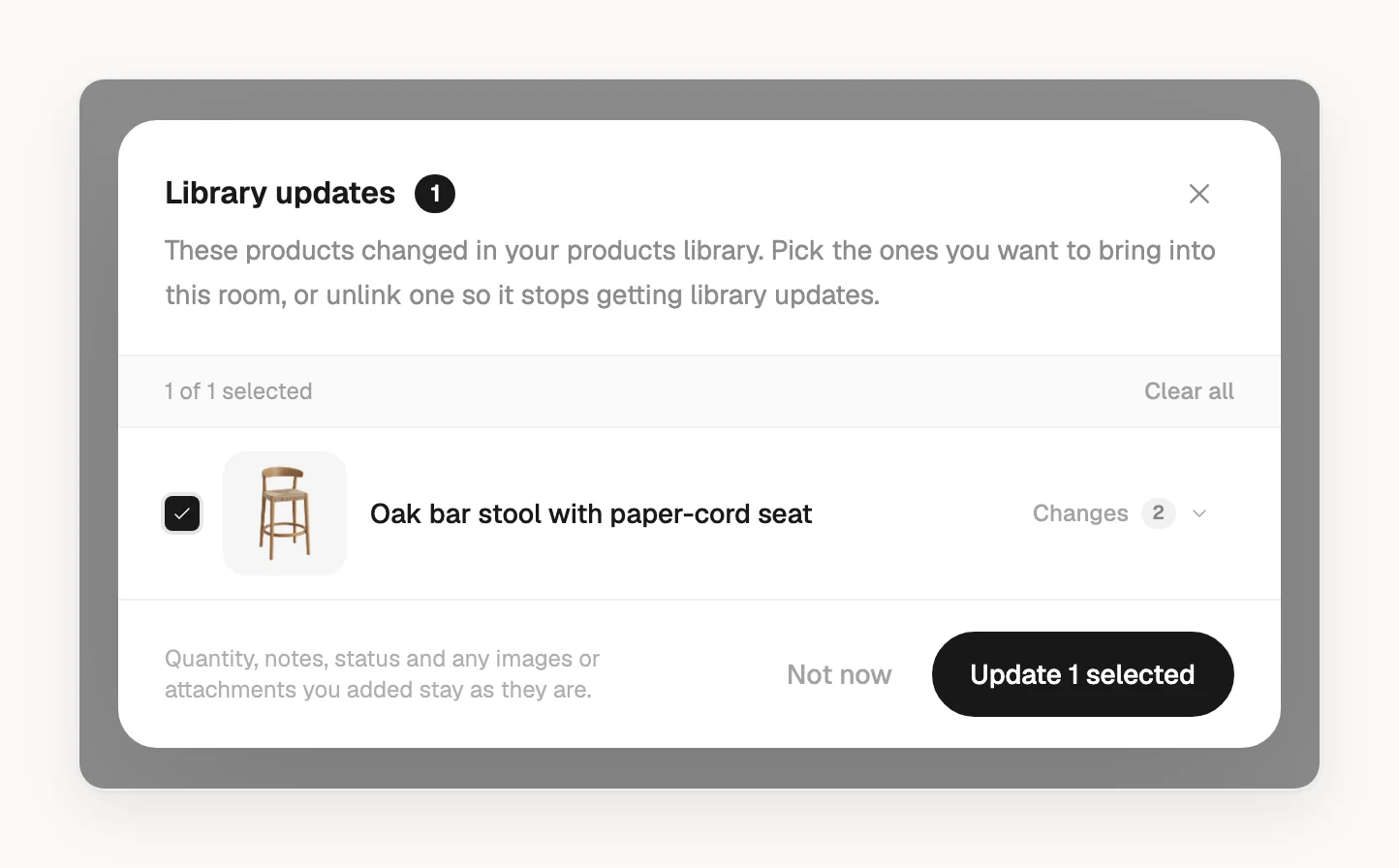
An update brings in the library's specs, prices, photos and files. Alternatives you add to the library product later don't reach rows already added.
To stop a row getting updates, choose Unlink from products library in its menu. It keeps everything, but can't be linked again. A row also unlinks when someone changes a locked field or deletes the library product.
Teammates with the Project member role can use library products, review updates and unlink rows, but can't change the library itself.