

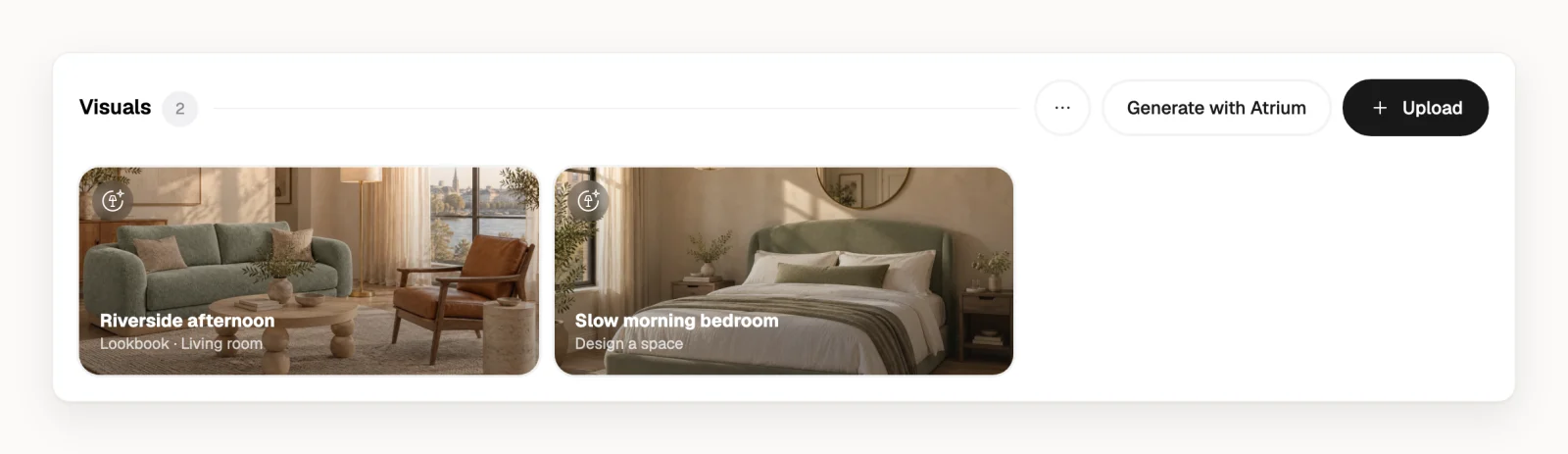
Every project has a Visuals section on its overview, under the rooms. Put your renders, photos of samples or a finished Atrium visual there, and clients see them next to the rooms and products.
Upload your own visual
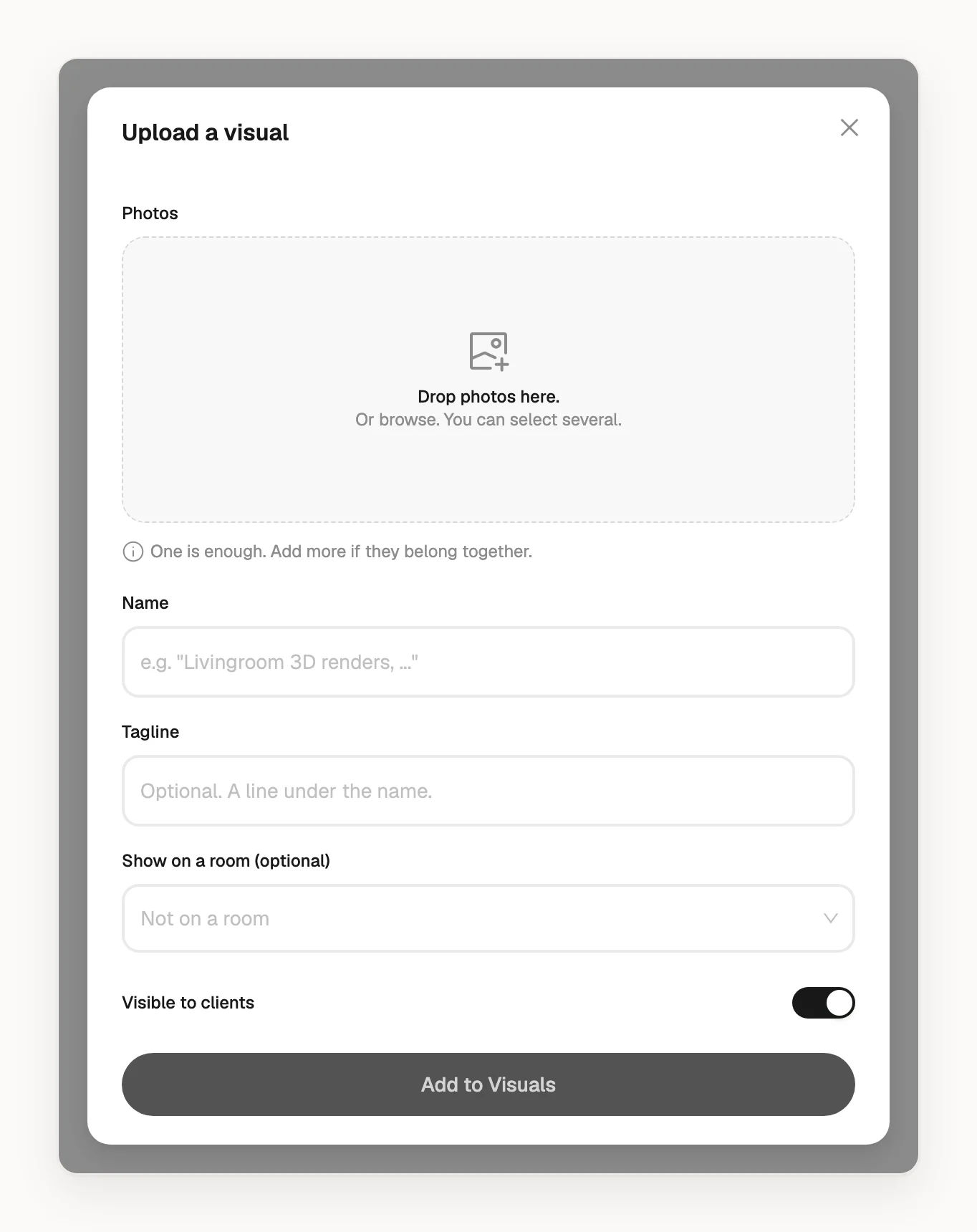
- Open the project and click Upload in the Visuals section.
- Drop in your photos or browse for them. A visual can have up to 16 photos. The first is the cover; click the star on another photo to make it the cover.
- Give it a Name. A Tagline is optional.
- To show it in a room too, pick the room under Show on a room (optional).
- Leave Visible to clients on if clients should see it, and click Add to Visuals.
In a room, click on the Visuals and moodboards row and choose Upload a photo: the room is filled in for you. Uploading doesn't use Atrium credits.
An uploaded visual belongs to this project only: it isn't in Atrium's list of visuals and can't be added to another project.
Make a visual from the room's products
- Open the room, click on the Visuals and moodboards row and choose Generate with Atrium.
- Atrium opens, ready to place your products in a room. Click , choose Add products, pick the room's row (tagged From this room) and select the products. Only products with a photo can be picked, up to 15.
- Describe the room they should be in and generate it.
It uses an Atrium credit, and the result is added to the room for your clients to see. More about recipes and credits in How do I create room visualizations with Atrium?
Generate with Atrium in the project's Visuals section works the same way; the visual goes on the project, not on a room.
A visual you already made in Atrium can be added too: see How do I show an Atrium visual to my client?
Change or remove a visual
In the project's Visuals section, hover over a visual and click :
- Edit: change the name, tagline, room or Visible to clients. A new name for a visual made in Atrium shows in Atrium too.
- Hide from clients (Show to clients when it's hidden).
- Open in Atrium: change the picture itself (it uses an Atrium credit) or, for an uploaded visual, Add photos.
- Delete removes an uploaded visual with its photos. For a visual made in Atrium it's Remove from project, and it stays in Atrium.
In a room, open the Visuals and moodboards row and click on a visual: Hide from clients hides it for the whole project, not only this room. Remove from this room keeps it in the project's Visuals.
What your client sees
Visuals that are visible to clients show on the client's Overview and in the room you picked, if the client can see that room. Clients can download a visual or save it as a PDF; they can't comment on it or approve it.
Who can add visuals
Everyone in your organization can upload visuals. People with the Project member role can upload visuals and open them in Atrium, where they can change the picture or add photos. They can't generate a visual or add one from Atrium, and don't get Edit, Hide from clients, Delete or Remove from this room. See How do I control who can see a project?