

A recipe tells Atrium what kind of result to make. Pick it under Recipe at the bottom left of the box where you describe the room.
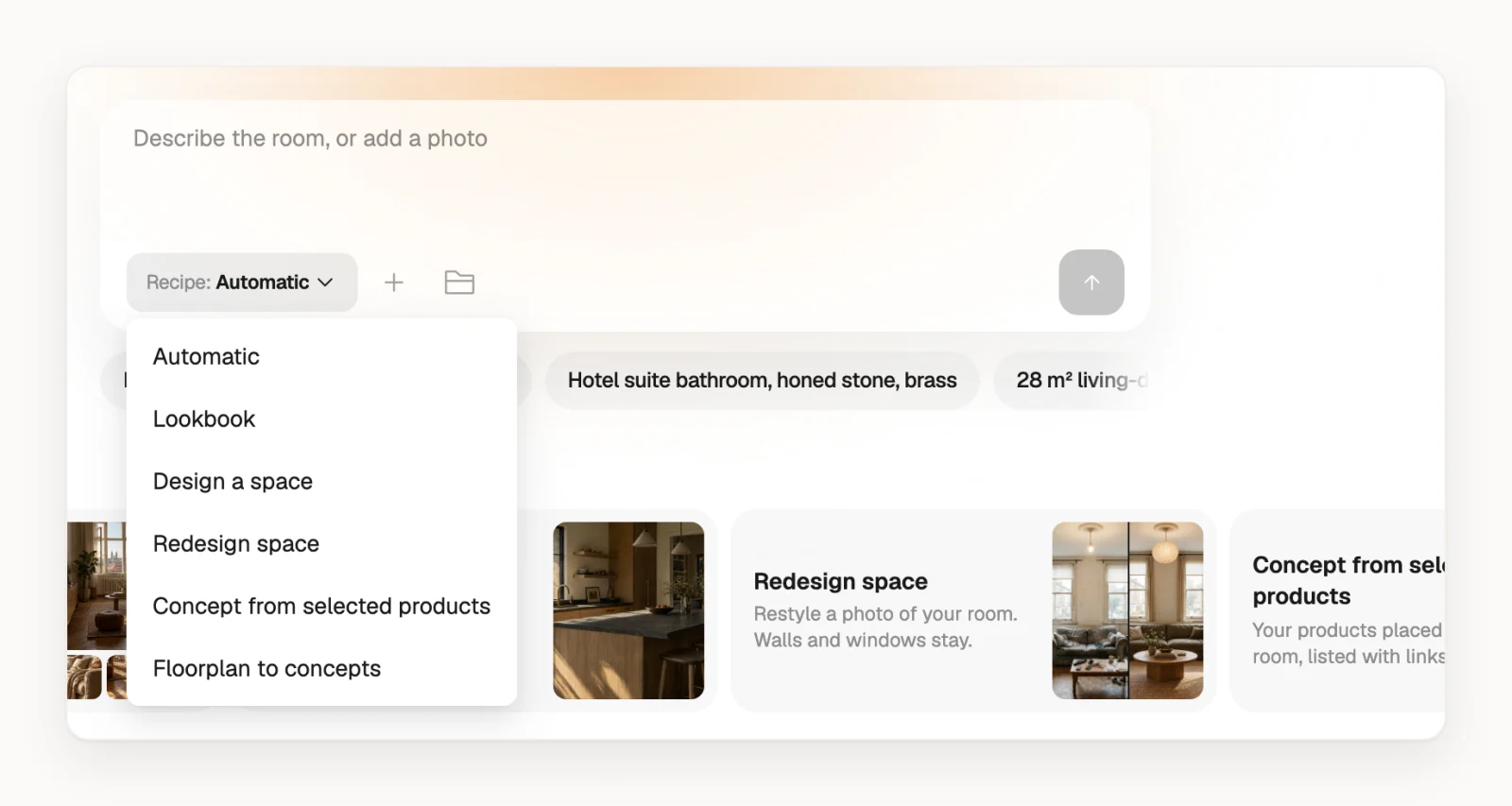
The recipes
| Recipe | Use it when | You give it | You get |
|---|---|---|---|
| Lookbook | You want a concept to present, with a mood and a story | A description, plus photos or products if you like | One photo with a title, a short story, a colour palette and 4 close-ups |
| Design a space | You need a new room or facade from a brief | A description, reference photos or both | One photo of the room or facade |
| Redesign space | You want a photo of a real room restyled | A photo of the space, plus style references if you like | The same room in the new style, with a before and after slider |
| Concept from selected products | You want to see picked products together | Up to 15 products, plus a room photo if you like | The products placed in a room, listed next to the photo |
| Floorplan to concepts (Experimental) | You want a first look at each room of a floor plan | A photo or scan of the plan, plus style references if you like | One photo per room you pick |
Automatic
Automatic is the default. When you click , Atrium reads your description and the first photo and picks the recipe: a floor plan goes to Floorplan to concepts, a room photo with no description to Redesign space, and when it's unsure, Lookbook. Picking doesn't use a credit.
Photos and products
Photos in Lookbook and Design a space are inspiration for mood, materials and light; Atrium doesn't keep their room. In Redesign space, the walls, windows and camera angle come only from the photo of the space, and they stay unless you say otherwise.
You can add up to 15 products to any recipe with and Add products, and Atrium places those exact pieces. Only Concept from selected products lists them next to the photo, without prices. Hide products hides that list and its dots everywhere, for your clients and in the PDF too.
Floorplan to concepts
Atrium marks up to 8 rooms on the plan. Click a room to skip it, then generate: each room uses 1 credit, and they all end up in one visual. If you leave early, open the visual and click Generate the remaining rooms.
Flyover for a Lookbook
A Lookbook can also get a short video that walks into the room: open it and click Make a flyover under the photo.
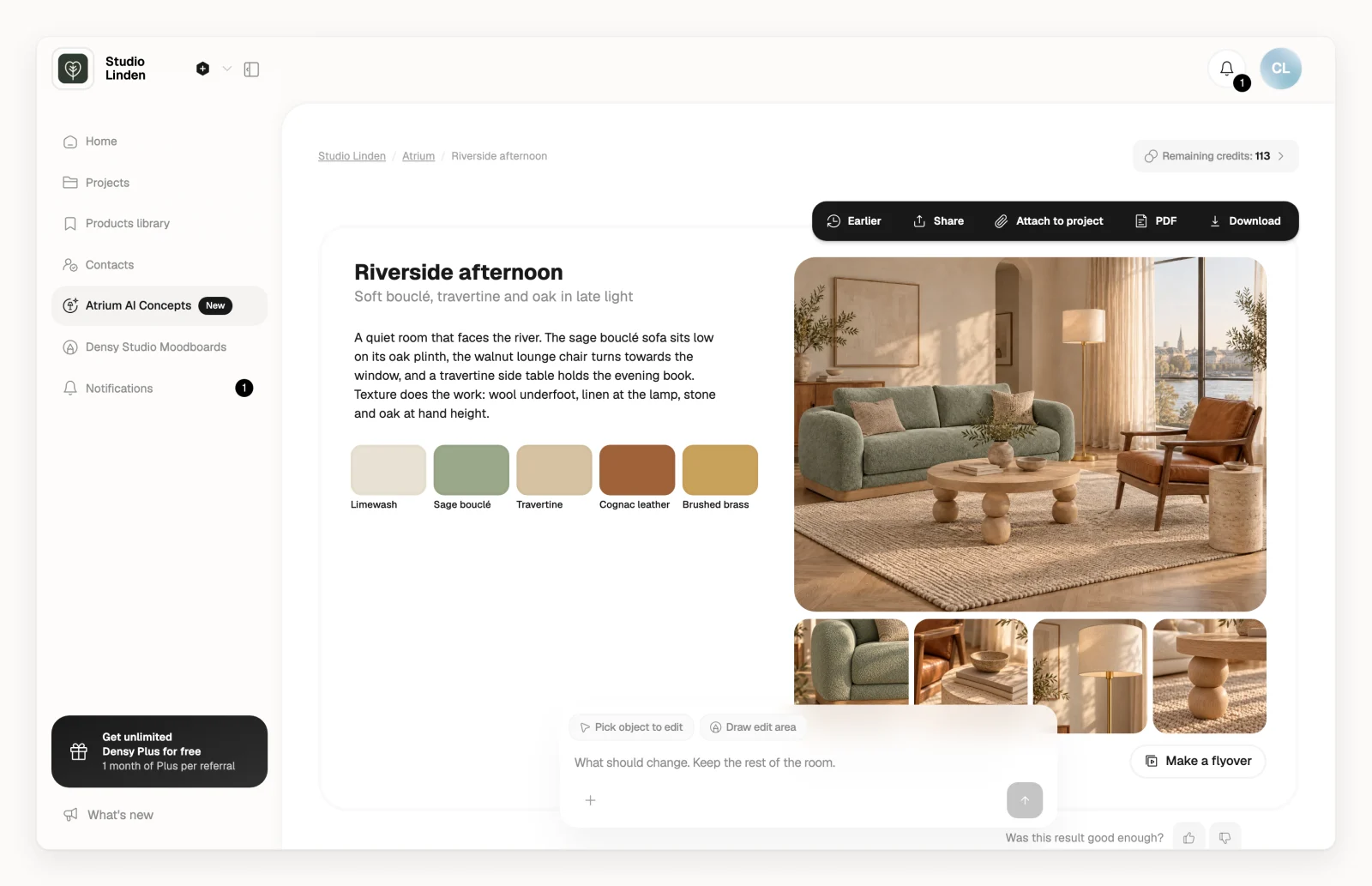
A flyover uses 5 credits, taken only when the video is ready. More in How do Atrium credits work?