

Every change to the image is a new version of the same visual, and you can go back to any of them. Your clients and share link see the current version: the newest, or one you restored. Open a visual from Recent work in Atrium or from a project's Visuals section.
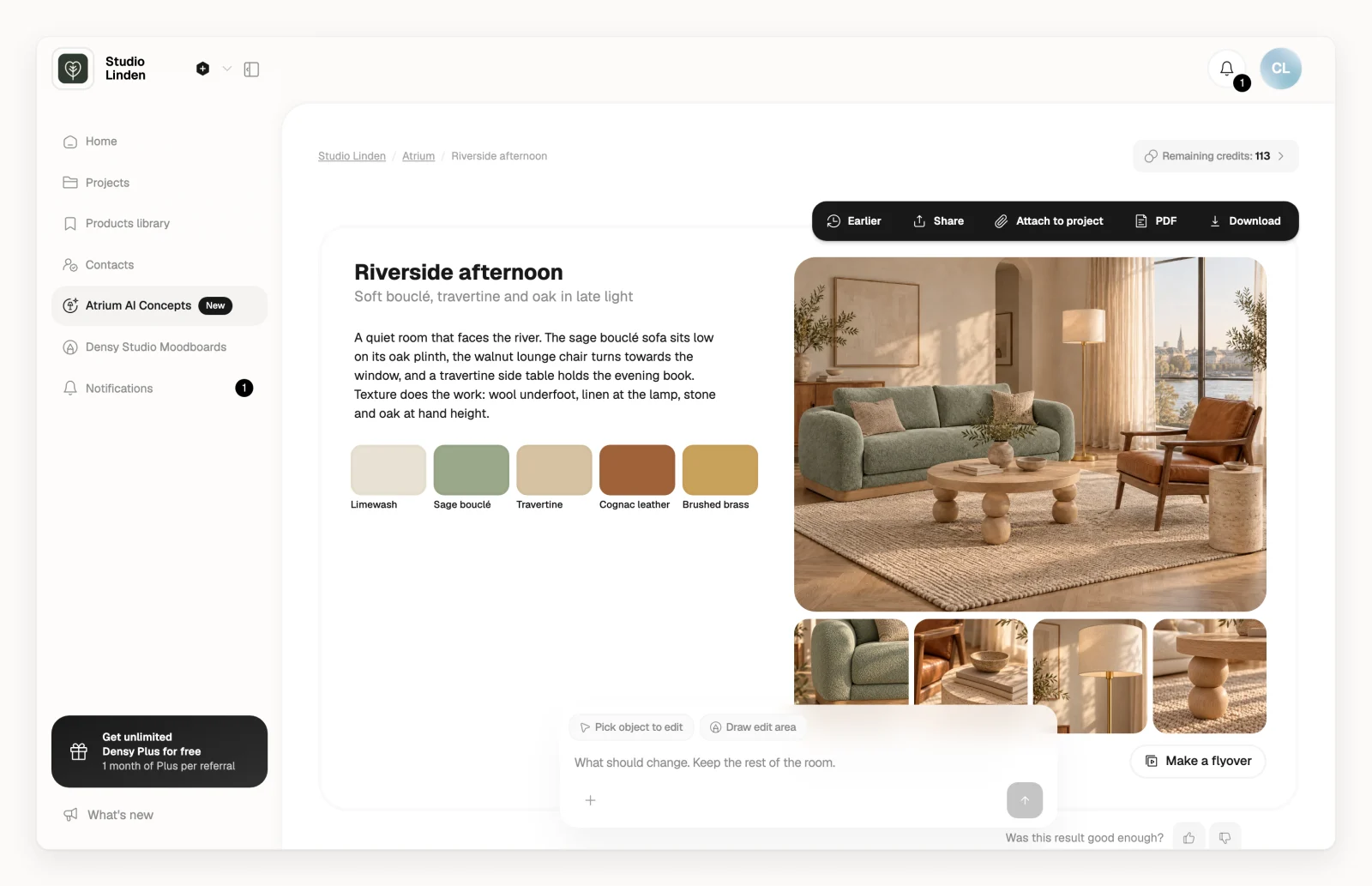
Change the whole image
- In the edit box at the bottom of the page, write what should change, for example warmer light, fewer cushions.
- Click .
Atrium changes what you asked for and keeps the rest of the room. To show it what you mean, add up to 4 photos or products with . On a visual with several photos, such as rooms from a floor plan, first pick the photo to change: click its chip in the edit box, or on the photo.
Change one thing
- Click Pick object to edit at the top of the edit box and click the thing to change, such as the sofa, or click Draw edit area and paint over it.
- Write what should happen to it and click .
Exit editing takes you back without changing anything.
Go back to an earlier version
- Click Earlier in the black toolbar at the top right (it appears once there are 2 or more versions) and pick a version.
- Click Restore (Restore all when the version has several photos).
The newer versions stay under Earlier, so you can switch back. To bring back just one of several photos, click the restore button on that photo.
Change the name, story and other text
Hover over the title, the line under it or a Lookbook's story, click and type.
After you change a Lookbook's photo, its palette and close-ups still belong to the old photo, and your clients and share link don't show them until you click Update next to them. That doesn't use a credit. A flyover doesn't update by itself: Film it again makes a new one for 5 credits.
Remove a product from the list
On a Concept from selected products visual, click next to a product in the list and confirm; the photo stays as it is.
What it costs
Each edit uses 1 credit; restoring doesn't, and a failed edit gives the credit back. More in How do Atrium credits work?