

Densy Plus is per organization: one subscription covers everyone in it.
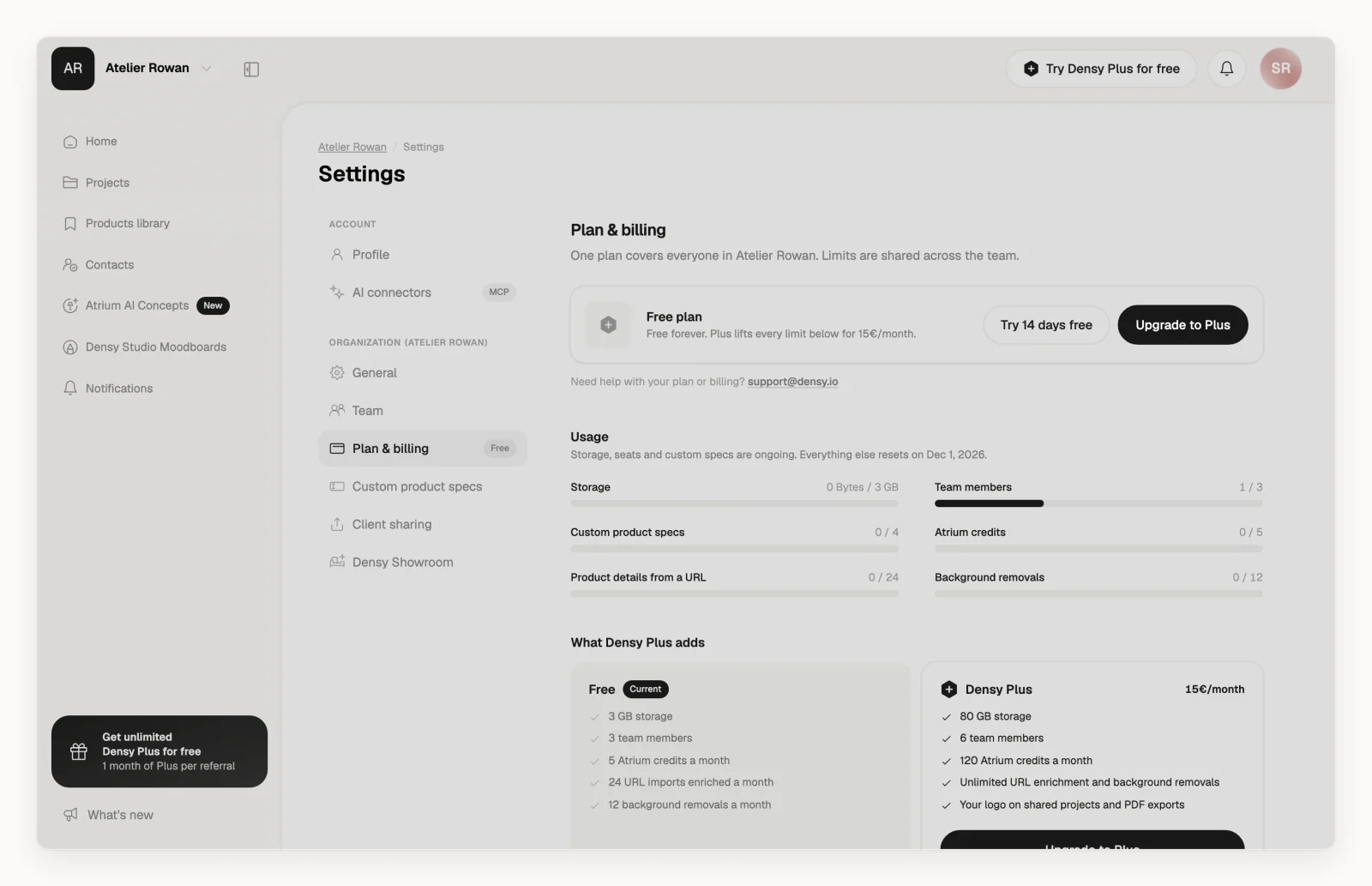
Upgrade
- Click your profile picture or initials in the top right and choose Plan & billing.
- Click Upgrade to Plus.
- In Stripe's checkout, enter your billing address and payment details. There are fields for a tax ID and a promotion code.
- Confirm the payment. Plus now applies to the whole organization.
When you hit a Free limit, the Upgrade to Densy Plus dialog leads to the same checkout.
Price and billing
- Plus is billed monthly. The price is on Plan & billing and the pricing page.
- If you use Densy in Czech, you pay in Czech crowns; in every other language, in euros.
- Invoices lists your invoices. Manage subscription opens Stripe, where you change your card or cancel: see How do I cancel Densy Plus?
If a payment fails, you're on Free limits until it goes through; your data stays. Click Upgrade to Plus to update your card.
Try Plus free first
If your organization has never had a trial, click Try 14 days free on Plan & billing, then Start 14-Day Free Trial. No card needed. Afterwards you're back on Free unless you subscribe; with Subscribe now during the trial, the days left stay free.
Free months from referrals work the same way: see How does the Densy referral program work?
What changes with Plus
| Free | Densy Plus | |
|---|---|---|
| Storage | 3 GB | 80 GB |
| Team members | 3 | 6 |
| Custom product specs | 4 | 30 |
| Atrium credits a month | 5 | 120 |
| Product details from a URL a month | 24 | Unlimited |
| Background removals a month | 12 | Unlimited |
Plus also puts your logo on client links and PDF exports, and adds more client permissions.
Only admins of your organization can upgrade. If you're not an admin, ask one in your team.