

Every project has a Project Planner tab: one board with the project's tasks. You assign them, set due dates and move them from To do to Done.
Add a task
- Open the project and click the Project Planner tab.
- Click Add new task at the bottom of a column: To do, In progress, Waiting or Done.
- Type the title and press Enter.
A new task is assigned to you. If the tab shows Start using project planner instead of the board, click it once to set the planner up.
Fill in the details
Click a task to open it. Everything except the description saves as soon as you change it.
- Description: click into it, write, then click Save.
- Add subtask: a checklist inside the task.
- Add attachment: drop files or click to upload, each under 500 MB.
- Progress, Due Date and Phase on the right.
- Assigned To: pick one or more people. If you pick a teammate who can't open this project yet, Densy asks Assign users to the project first. Confirm, and they get access to the whole project.
Once a due date has passed and the task isn't Done, it turns red on the card.
To delete a task, open it and click Delete task. Deleting can't be undone.
Move tasks along
Switch views at the top left.
- Progress view: a column for each stage. Drag a card to another column, or up and down to change the order.
- Phase view: tasks grouped by phase. Drag a task into another phase. The circle in front of a task marks it Done.
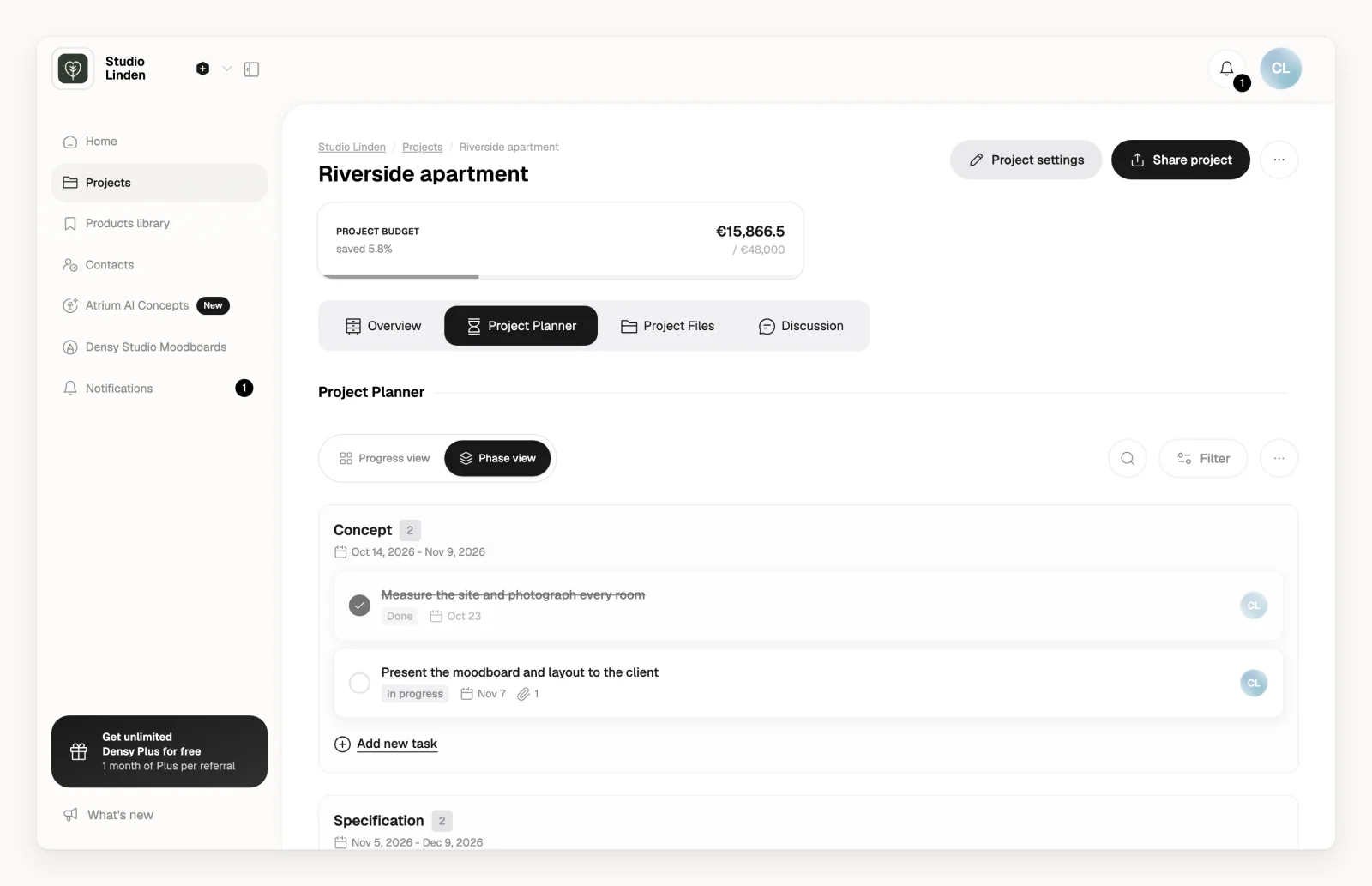
Group tasks into phases
Phases are the project's stages, such as concept or installation, each with optional dates.
- Switch to Phase view.
- Click Create your first phase. Later, use Add new phase at the bottom.
- Fill in Phase Name, pick the Phase Duration if you want dates, and click Create.
To change a phase, hover over it: and change the order, and has Edit phase and Delete phase. When you delete a phase, its tasks stay and move to No Phase.
Find a task
in the top right searches task titles and descriptions. Filter narrows the board by assignee, progress, phase and due date, for example Overdue.
Comment on a task
Open the task, write under Comments and click Comment. You can edit or delete your own comments from . Clients never see task comments.
Copy a planner from another project
- In the Project Planner tab, click next to Filter and choose Copy tasks from another project. On an empty planner, the Start with a template? box has the same button.
- Under Copy from project, pick the project.
- Click Copy, or click Advanced settings first to change what comes along.
By default, Densy copies the phases, the tasks, their subtasks and descriptions, and keeps who's assigned. It clears the dates and ticked subtasks, and puts every task in To do. Comments and attachments are never copied. Nothing already in the planner gets replaced.
When you copy a whole project with Duplicate, its planner comes along by default. See How do I create a project?
Who gets notified
Everyone assigned to a task is notified when someone else reassigns it, moves it to another stage, comments on it or changes its due date, and gets an email if it's unread after 4 hours. Clients never get notifications about tasks.
What clients see
Clients see the planner only when you switch on Project planner in their permissions, which takes Densy Plus. They see every task and phase, read-only, without task comments. There's no way to hide a single task from clients, so write tasks with that in mind. See How do I control what a client can see and do?