

Your client approves or rejects each product and service on their project link, on a phone or a computer, without an account. Their decision shows next to the product in your schedule, and you can also record it for them.
What your client does
- They open their project link and a room.
- On a product or service, they click Approve or Reject.
A product with alternatives shows its options as thumbnails, except the ones you've hidden from clients. The client opens an option and clicks Approve this option, or Reject all options.
- Approving an option makes it the main product and marks the other options rejected.
- Rejecting rejects every option. There's no rejecting one alternative on its own.
Afterwards, they can click Change decision to set it back to awaiting approval.
There's one decision per product or service, not one per client: any of your clients can make it or change it.
The client needs Approve & reject switched on. When it's off, they don't see the buttons or any decisions. See How do I control what a client can see and do?
What you see in your schedule
- In the list: a green Approved by client or a red Rejected by client above the product's name.
- In the grid: an Approved or Rejected tag on the photo.
- Only one kind of decision: click Filter above the products, choose Approved by client, Rejected by client or Awaiting approval under Client approval status and click Filter.
- Who decided and when: click in the top right of the room or project, choose Activity feed and set the type to Approvals & comments.
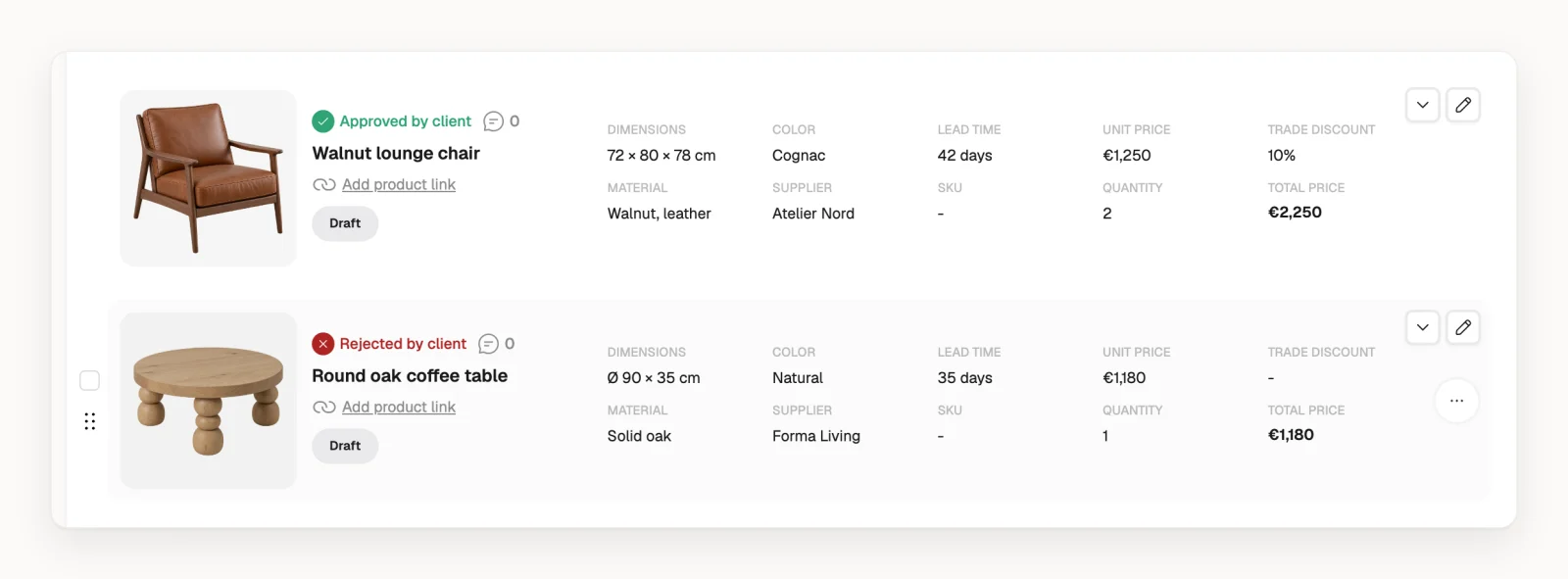
The client's decision vs. your own status
Every product and service also has a grey status under its name, like Draft, Client review, Approved or Ordered. That's your workflow, and clients don't see it. The two never change each other: setting your status to Approved doesn't record a client approval.
Record a decision for your client
When a client decides on a call or in person:
- Hover over the product or service and click on the right of the row.
- Point to Set client decision and choose Mark approved by client, Mark rejected by client or Reset to awaiting approval.
- Confirm with Mark approved, Mark rejected or Reset approval.
For several rows at once, tick their checkboxes on the left (on a computer) and click Set client decision in the bar at the bottom.
- The decision applies to the main product. Mark approved by client marks its alternatives rejected; Mark rejected by client rejects every option.
- If the client chose an alternative, first click on its thumbnail and choose Promote to main product, then mark it approved.
- A client with Approve & reject on gets a notification and can still change the decision from their link.
When a decision goes back to awaiting approval
Editing a product, its price included, doesn't reset the decision. It goes back to awaiting approval when:
- you add an alternative, promote one to the main product or group products as alternatives. See How do I add alternatives to a product?
- you copy a product or service, or copy a room or duplicate a project with Reset approval status on (the default). The original keeps its decision.
How decisions affect the budget
A rejected product stays in the budget until you delete it, replace it or hide it from clients. See How do budgets and pricing work?
Who gets notified
Everyone in the project's Assigned team members gets a notification when a client decides. For your clients, see How are clients notified about project updates?